Before you start: open the current VOID studio in a modern browser. These instructions describe the development release and use locally generated demonstration audio in screenshots.
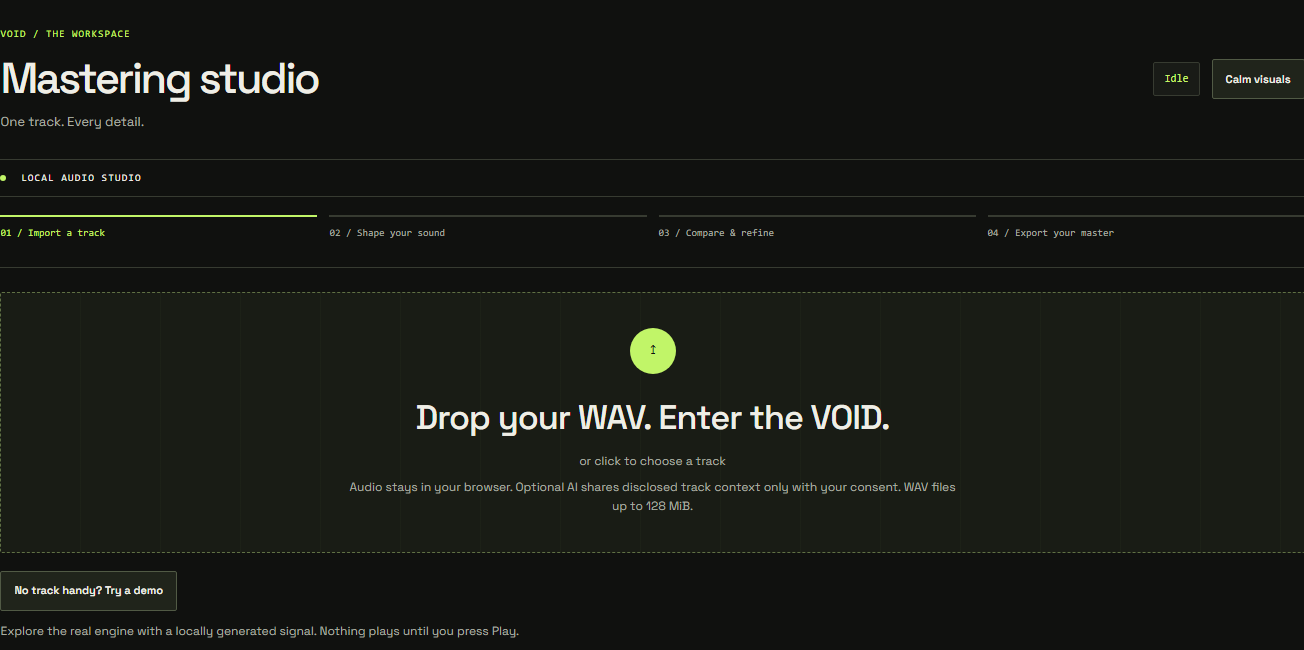
Before you begin
Export a finished mix from your DAW as a WAV. Keep the unmastered original so you can return to it. Leave deliberate room for processing rather than normalizing every mix to its loudest possible peak. If distortion is already printed into the source, mastering cannot recover the missing waveform.
VOID accepts compatible nonempty WAV files. VOID supports compatible WAV files subject to available browser memory. Large or high-resolution files require more memory and may be safely refused on lower-memory devices. Manual processing supports one to eight channels; Auto and optional AI require mono or stereo. A file can still exceed the memory available to your browser after decoding, especially on a phone.
01 / Choose your source
Open Studio and use the WAV file picker, or drop one WAV onto the import area. Wait while the waveform and source measurements appear. Check the filename, duration, channel count and sample rate before proceeding. Nothing plays automatically.
An MP3 renamed with a .wav extension is still an MP3. If import fails, export an actual WAV from your audio editor. Use a shorter file if the browser reports insufficient memory.
02 / Listen before processing
Press original playback and listen to the loudest section and a quieter passage. Check that the file starts and ends where you expect. Keep an ear out for clicks, unwanted silence and clipped transients. Source measurements describe the file you imported, not a prediction of the finished master.
What happens next
Try Auto for a measured starting point, or switch to Advanced to work through the chain manually. Importing a replacement file resets the local audio session; save or export your current chain first if you want to keep it. Your WAV stays in the browser and is not uploaded.